Chapter 0
Before you start
ConferenceQ is one continuous flow: the audience joins by QR and asks in their own language, the question is translated and reviewed, and it reaches the presenter’s screen. This chapter lays out that flow and the people in it.
The four roles
| Role | Who | What they do |
|---|---|---|
| Audience | Anyone who scanned the QR | Asks and upvotes. Never signs in. |
| Moderator | Decides what goes out | Reviews, approves, hides, fixes translations, builds the running order. |
| Event Manager | The team preparing the event | Handles events, sessions, QR codes, materials and the Glossary. |
| Presenter | The speaker on stage | Sees approved questions with original and translation together. |
The path a question takes
- 1SubmittedThe audience writes in their own language
- 2TranslatedTranslated with the Glossary applied
- 3ReviewedA moderator approves or hides it
- 4QueuedIt joins the running order
- 5AnsweredThe presenter answers and marks it done
A role is a permission set, not a person. The same person can moderate one event and manage another.
Chapter 1
Signing up and signing in
You sign up as an institution, not as an individual. Whoever signs up becomes its first admin, and adds colleagues from the console afterwards.
Creating your institution
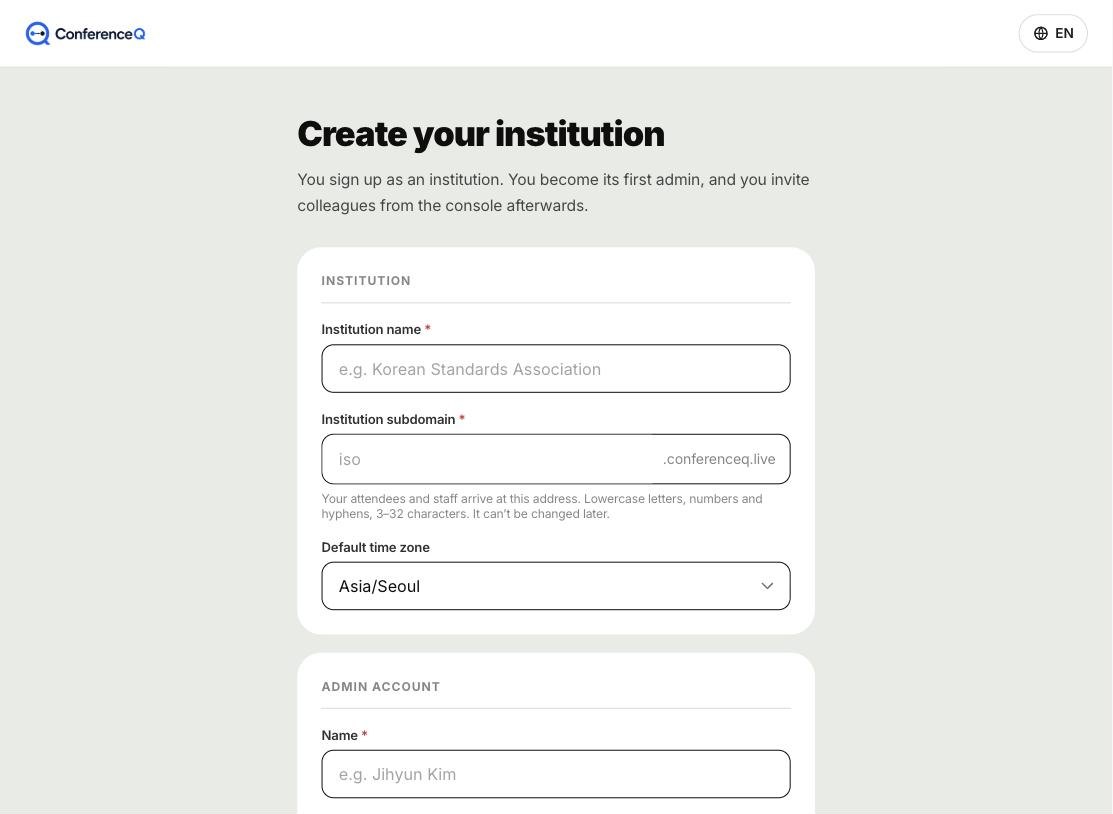
- Institution name — shown as-is on the audience screen and in the console header.
- Institution subdomain — the address your attendees and staff arrive at. Lowercase letters, numbers and hyphens, 3–32 characters. Availability is checked as you type.
- Default time zone — the default for new events. Each event can override it.
- Admin account — name, email, password. Each requirement ticks off as you satisfy it.
The subdomain can’t be changed later. Every QR code and printed programme you hand out points at it. Pick a short name for the institution, not for one event.
Signing in
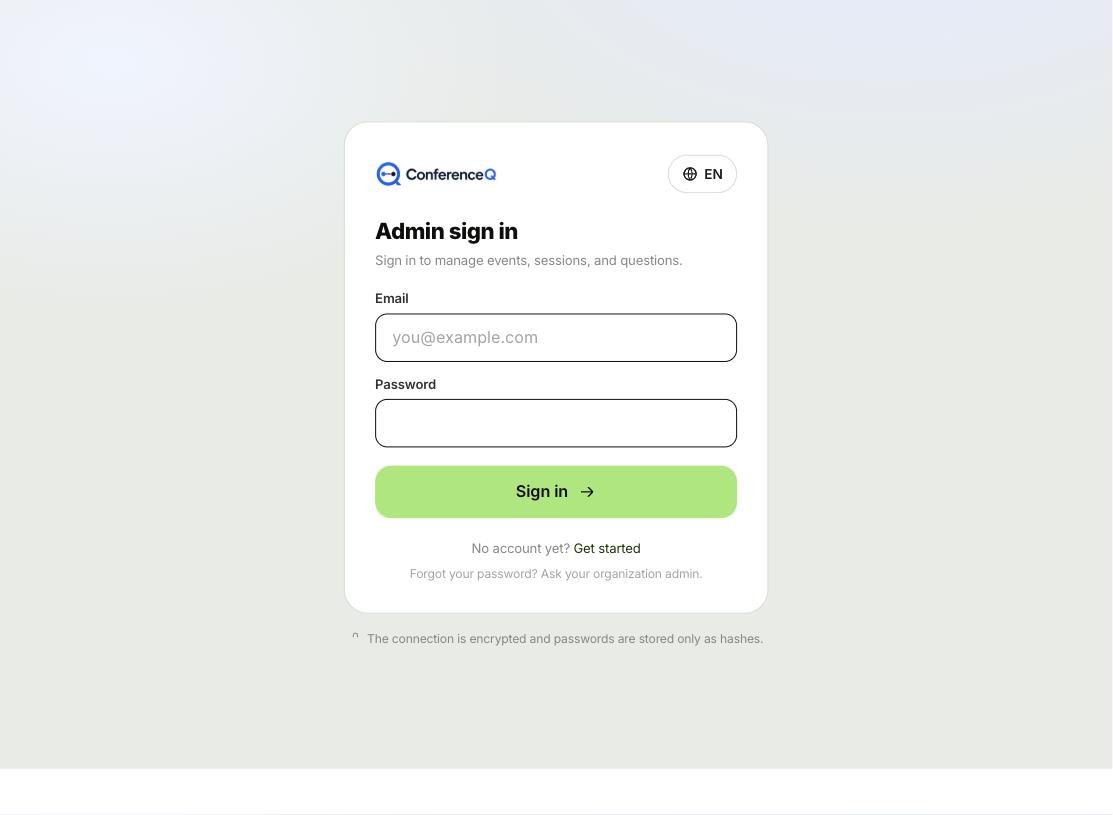
If you forget your password, an organization admin creates a reset link from User management and sends it to you. Open it, choose a new password, and you are signed in. The link expires after 24 hours and works once.
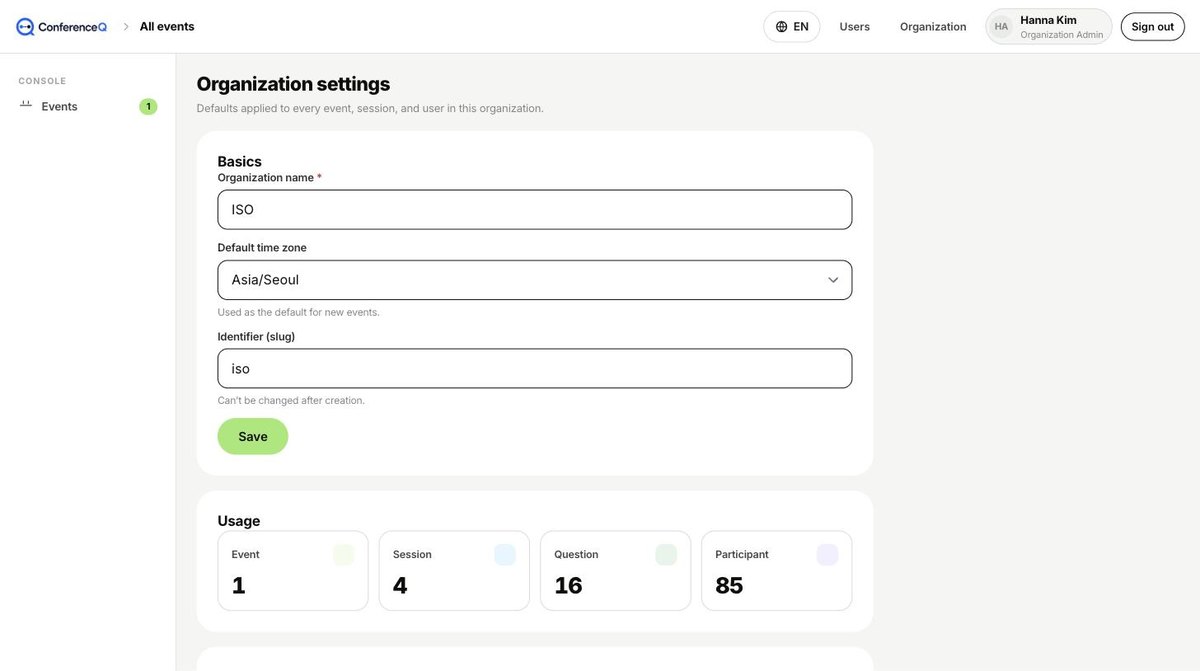
When sign-up completes you land on your institution’s own sign-in page (for example iso.conferenceq.live/admin/login). The certificate is issued automatically on that first visit — there is nothing to register. You can copy the address any time from Organization settings in the console.
Chapter 2
Preparing an event
Create the event, add its sessions, then prepare the QR codes, materials and terminology. This is everything you do before the day itself.
Create the event
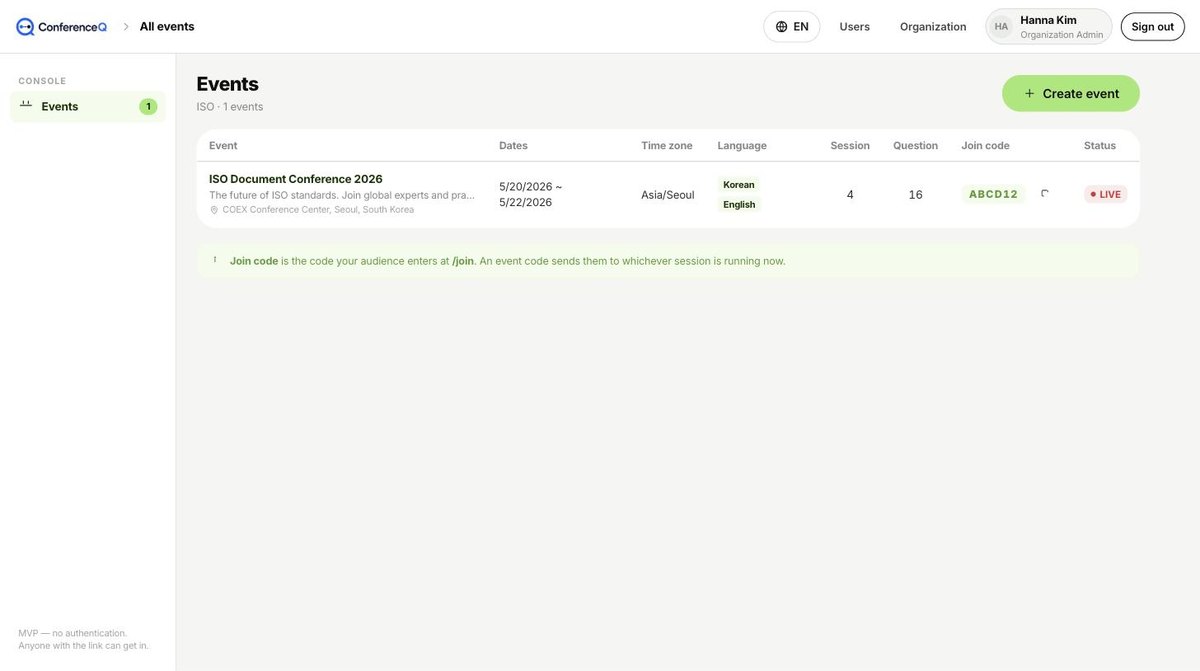
The join code is what your audience types at /join. An event code sends them to whichever session is running at that moment, so one printed code covers an event with many sessions.
Sessions and their status
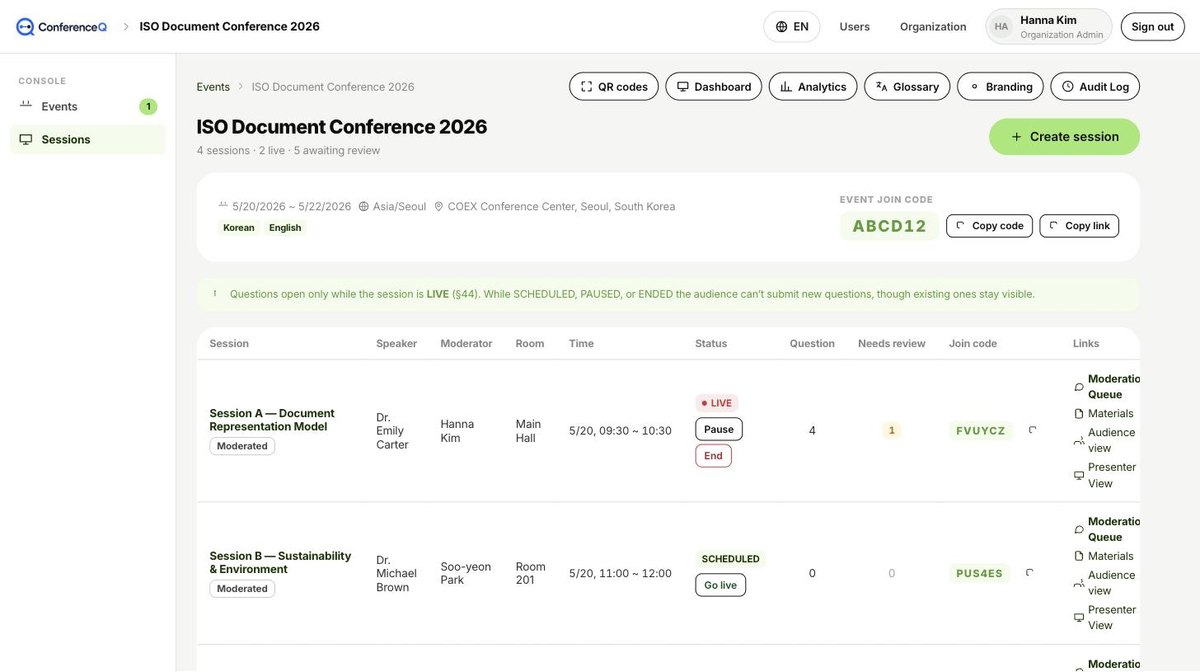
| Session status | Meaning |
|---|---|
SCHEDULED | Scheduled. Not taking questions yet. |
LIVE | Running. Questions are open. |
PAUSED | Paused. Submission closes; the screen stays. |
ENDED | Ended. Questions and answers remain readable. |
ARCHIVED | Archived. The Q&A page goes down and the materials are deleted. |
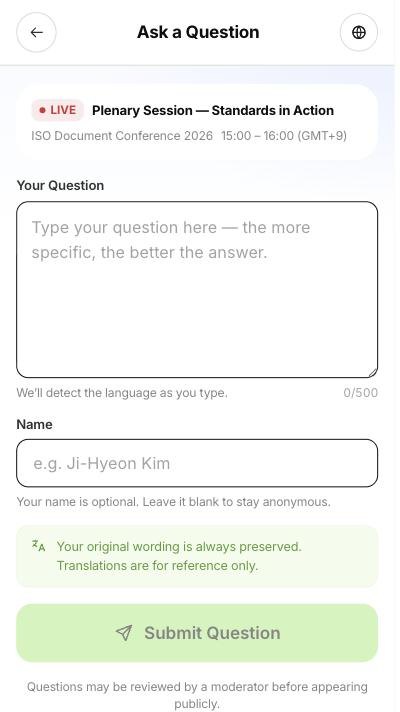
Questions open only while the session is LIVE. While SCHEDULED, PAUSED or ENDED the audience can’t submit new questions, though existing ones stay visible.
Generating and handing out QR codes
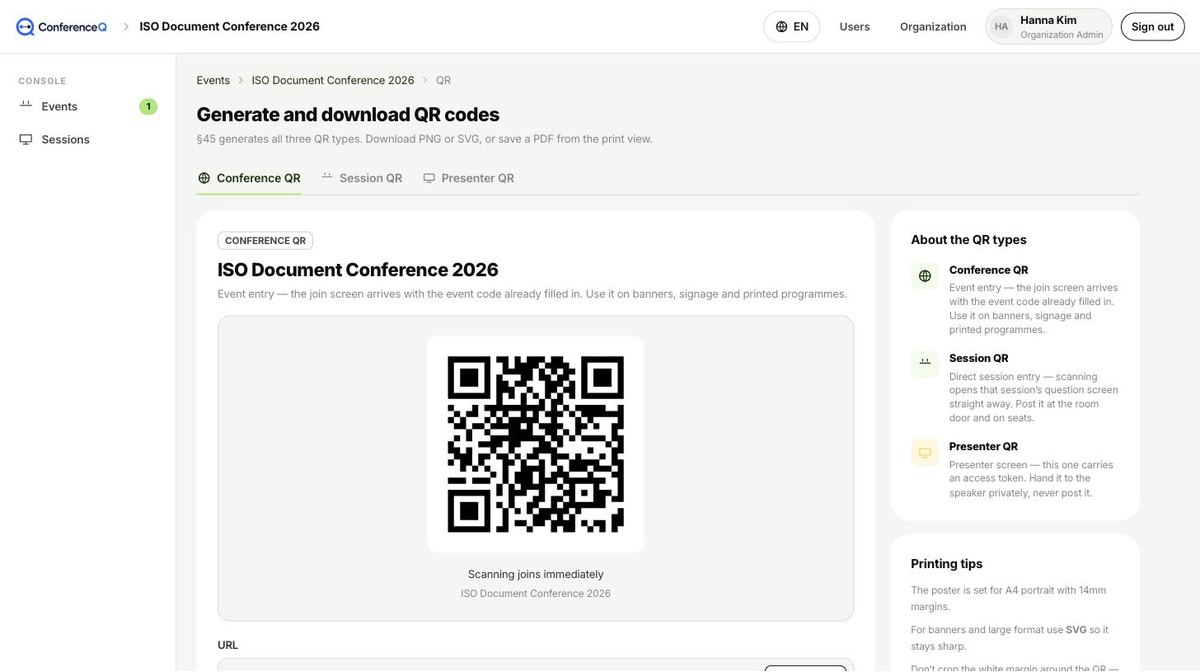
| Type | Where it goes | Meaning |
|---|---|---|
| Conference QR | Event entry | The join screen arrives with the event code filled in. Use it on banners, signage and printed programmes. |
| Session QR | Direct session entry | Scanning opens that session’s question screen straight away. Post it at the room door and on seats. |
| Presenter QR | Presenter screen | This one carries an access token. Hand it to the speaker privately. |
The Presenter QR carries an access token. Anyone with that link can open the presenter screen — hand it to the speaker privately and never put it on a banner, a seat or a printed programme.
Uploading presentation materials
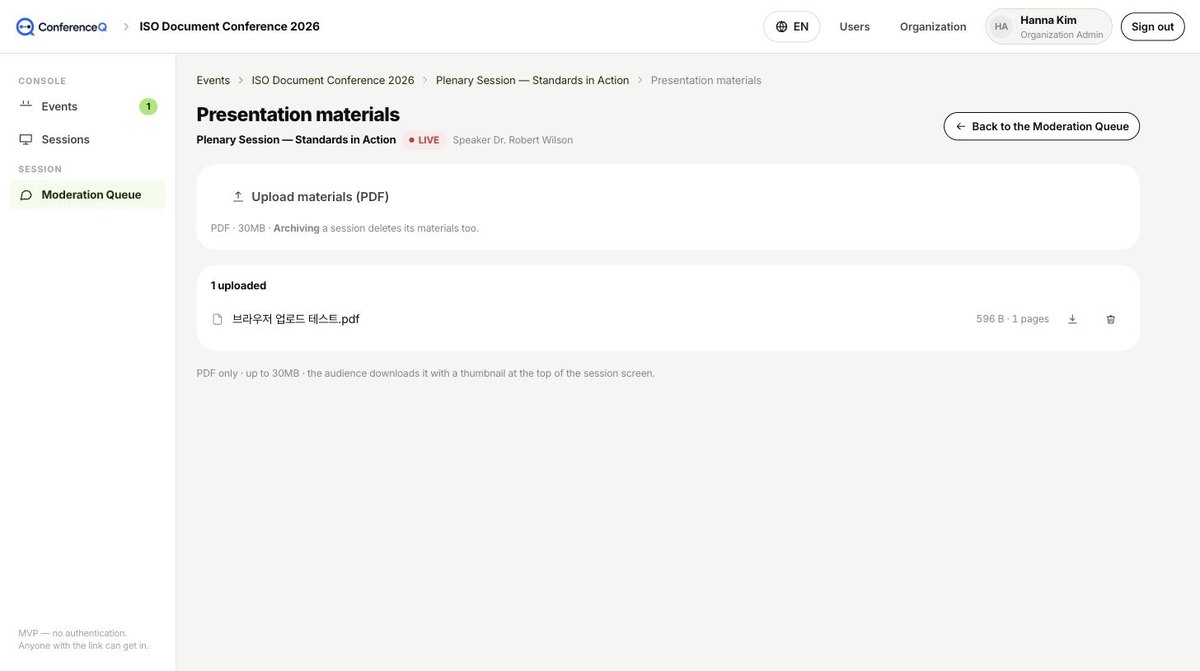
Files are deleted when you archive the session. Ending it does not delete them — people still read the questions and answers of a finished session, and they need the deck alongside.
Glossary — pinning your terminology
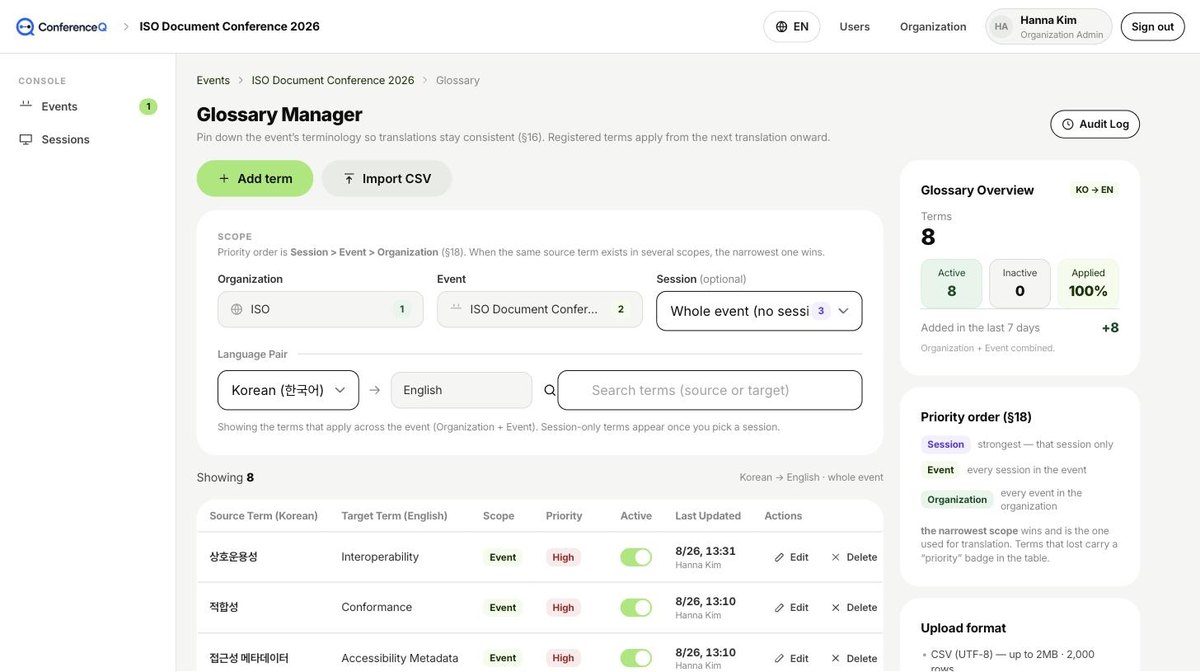
Priority runs Session > Event > Organization. When the same source term exists in several scopes, the narrowest one wins. A new term applies from the next translation onward — questions already translated are left as they are.
Branding
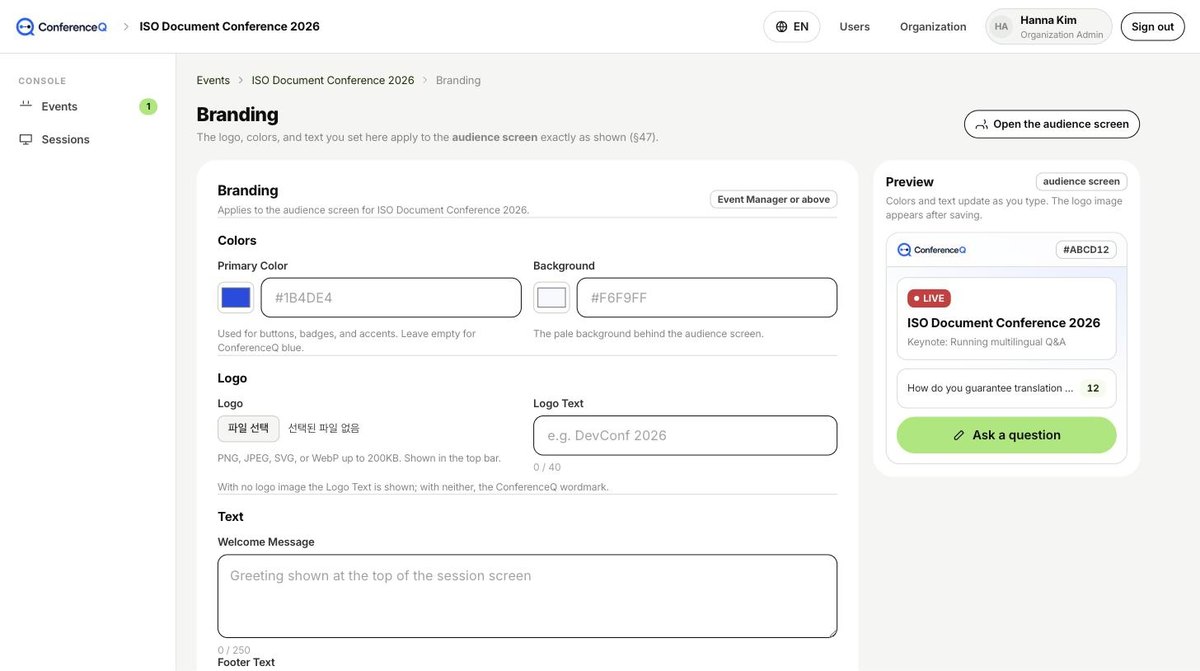
Chapter 3
What the audience sees
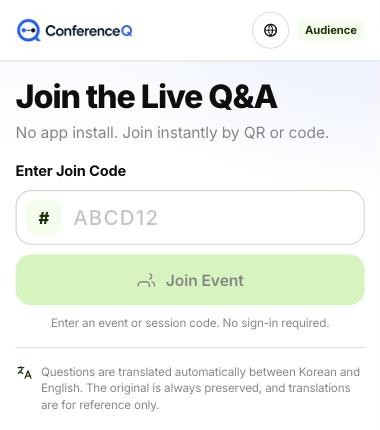
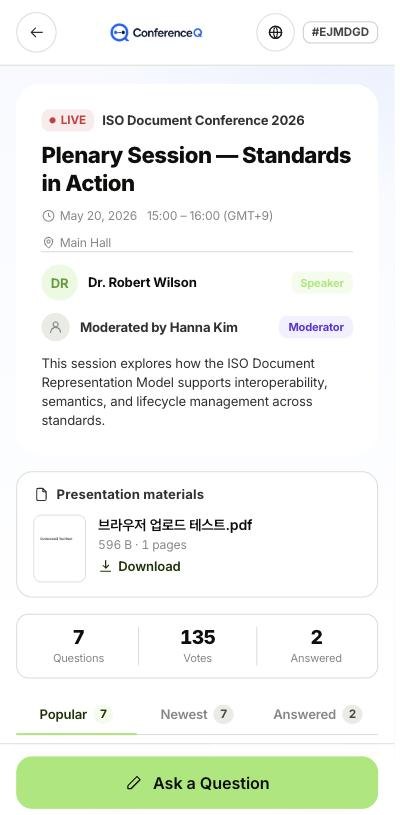
The audience installs nothing and signs in to nothing. Scanning a QR or typing a code is the whole of it — but one of the two is required. The code is the key to the room.
Taking part in a poll
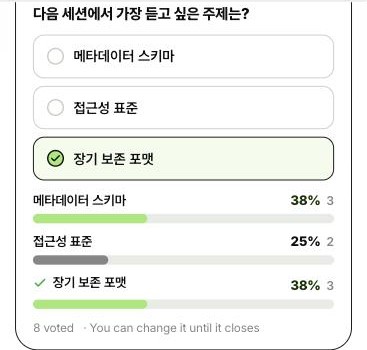
The clock at the top right is the time left. It turns red at ten seconds and the server closes the poll at zero. The server decides, not the clock on your screen — a tap at the very last moment may not be counted.
The join code is the door. Only people you handed a QR or a printed code get in. Code entry is capped at 10 attempts a minute so codes can’t be guessed. When the event is over, end the session to close new questions.
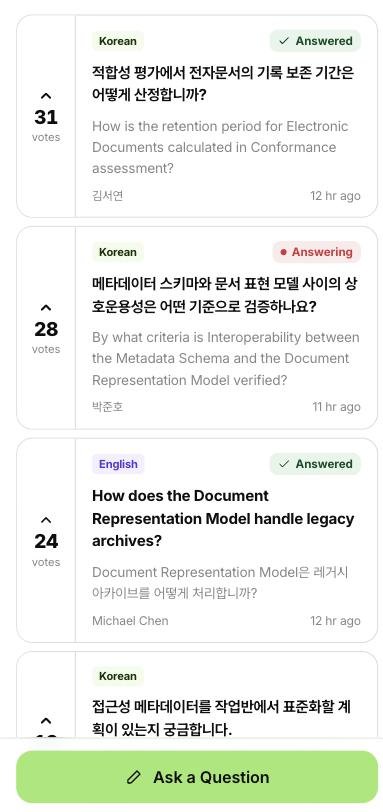
The original is never overwritten by its translation. Even when a moderator edits the translation, the original and the machine version both remain. Names are not translated either — they are what the person wrote.
The globe button at the top right switches between Korean and English. What changes is the interface wording; question text always shows the original and its translation together.
Chapter 4
The moderator’s working screen
During the event a moderator watches this one screen. Incoming questions on the left, the running order for the presenter on the right.
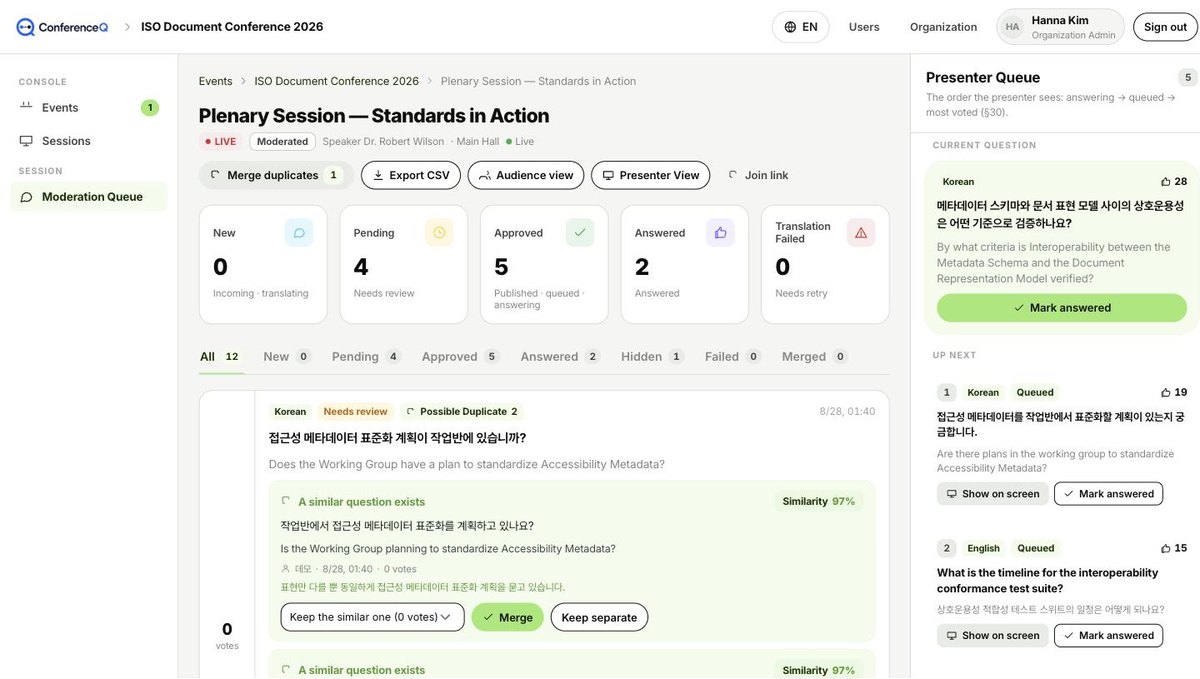
- Approve — the question appears in the audience list and in the Presenter Queue.
- Hide — it drops off the audience screen. This conceals rather than deletes; the record stays.
- Edit translation — fix an awkward rendering. Your edit is stored separately; the machine translation is kept.
- Re-check duplicates — rescan just that question for near-matches.
Two moderators can safely touch the same question. The first action wins and the second one is shown the current state instead. Nobody silently overwrites anybody.
Merging duplicate questions
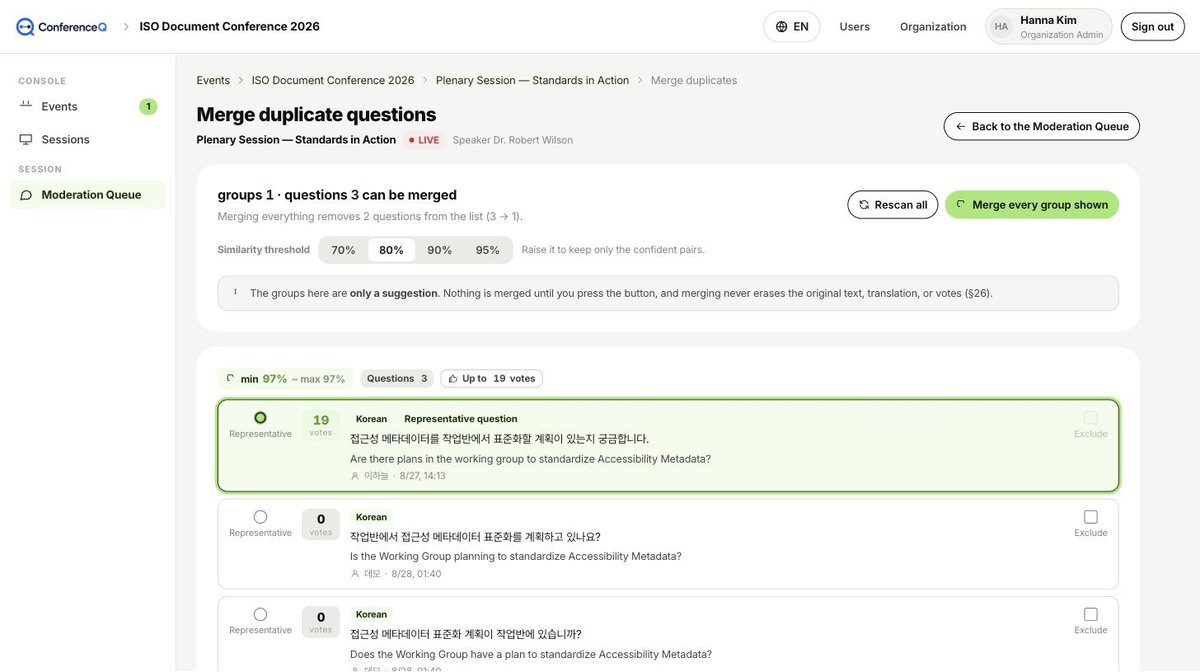
The groups here are only a suggestion. Nothing is merged until you press the button, and merging never erases the original text, its translation, or the votes.
On a narrow screen such as a tablet the right-hand panel is tucked away. The “Queue · Polls” button at the bottom right slides the Presenter Queue and polls out as a drawer.
Running a live poll
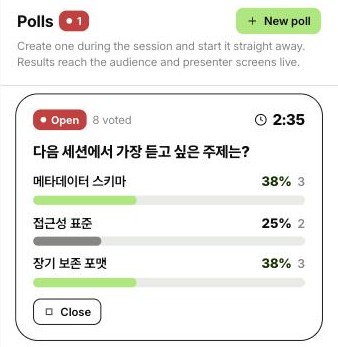
- New poll — one question and 2–8 options. Pick a time limit from 30 seconds to 10 minutes, or leave it to close by hand.
- Create and start — it appears on the audience, presenter and projector screens at that moment. Save only keeps it as a draft to start later.
- Close — you can close it early by hand. When the time runs out the server closes it for you.
- Reopen — open a closed poll again with a fresh time limit. Votes already cast are kept.
Each person gets one vote and can change it until the poll closes. There is no sign-in, so a vote is counted per browser — the same as upvotes. Results live on screen and in the Audit Log, not in the CSV export.
Running the Presenter Queue
The right-hand panel is the order the presenter will see: answering → queued → most voted. “Show on screen” makes a question the current one on the presenter’s screen; “Mark answered” takes it out of the queue.
Chapter 5
The presenter’s screens
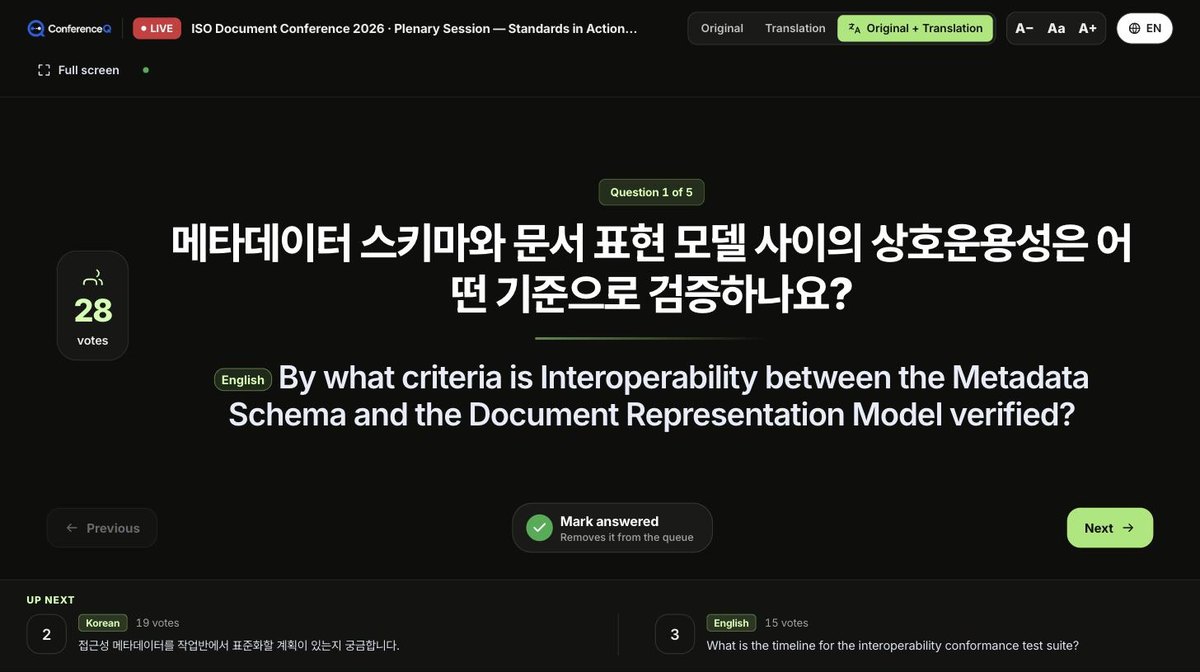
The presenter has two screens: one they operate on stage, and one you put on the projector.
Presenter View — operated on stage
Stage Display — for the projector or LED wall
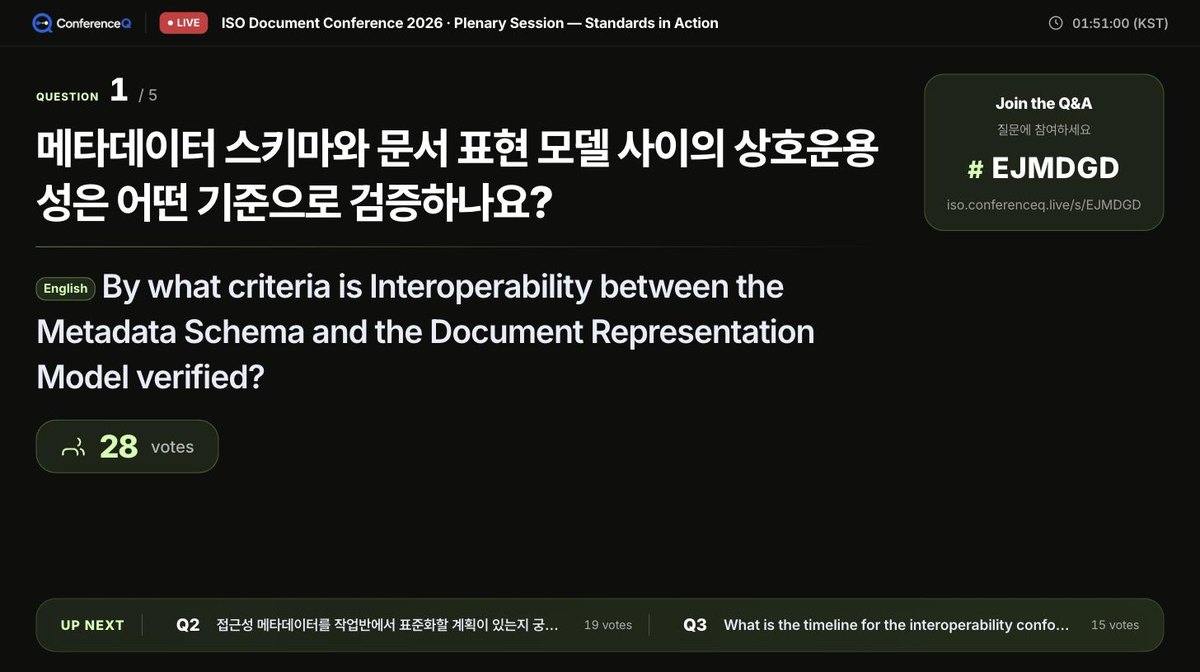
While a poll is open, the presenter screen shows the results above the question (the presenter can hide them), and the projector shows the results in place of the question. The projector’s join card now carries a QR code, so latecomers can join from the screen alone.
Both screens share one live session. When the moderator presses “Show on screen”, both update without a refresh.
Chapter 6
During and after the event
Keep the dashboard up while the event runs; afterwards, build your report from the analytics and the log.
Dashboard — what you watch during the event
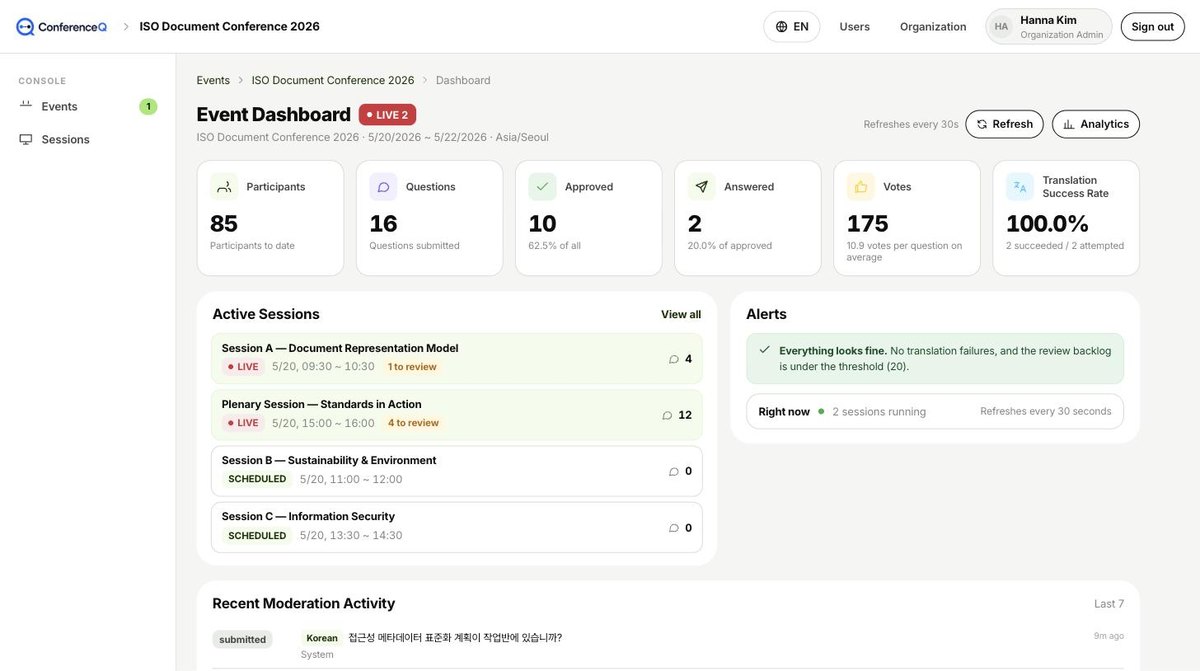
Alerts watches for translation failures and a growing review backlog. Past 20 questions awaiting review it warns you — that is the moment to put a second moderator on it.
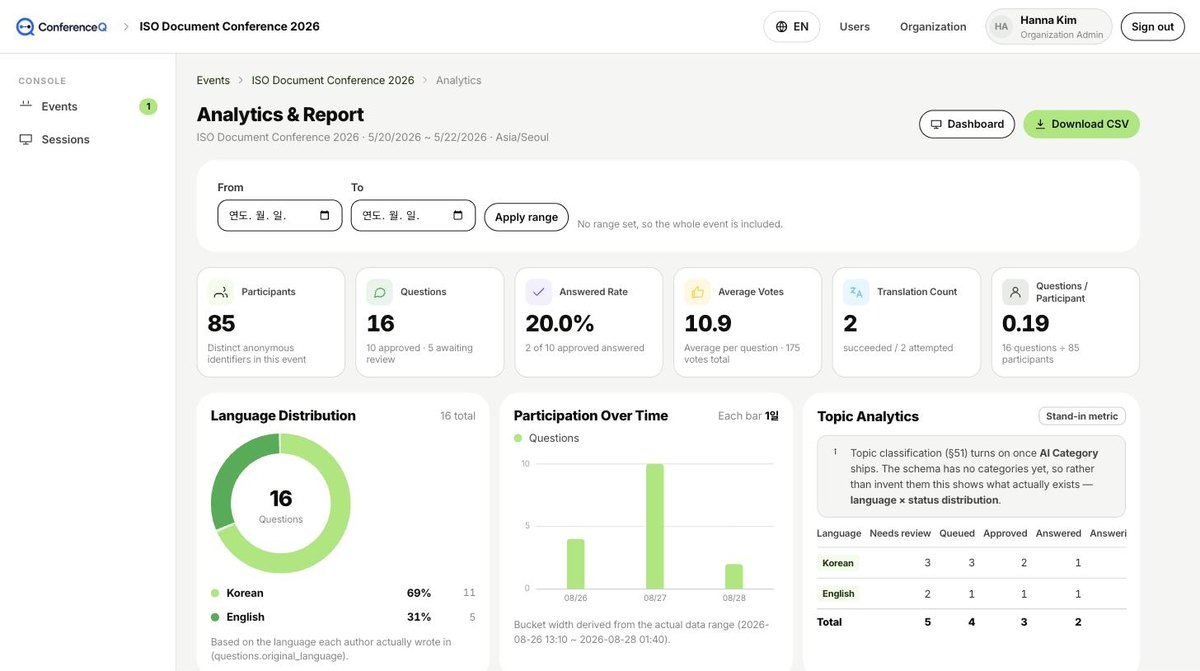
Analytics and CSV
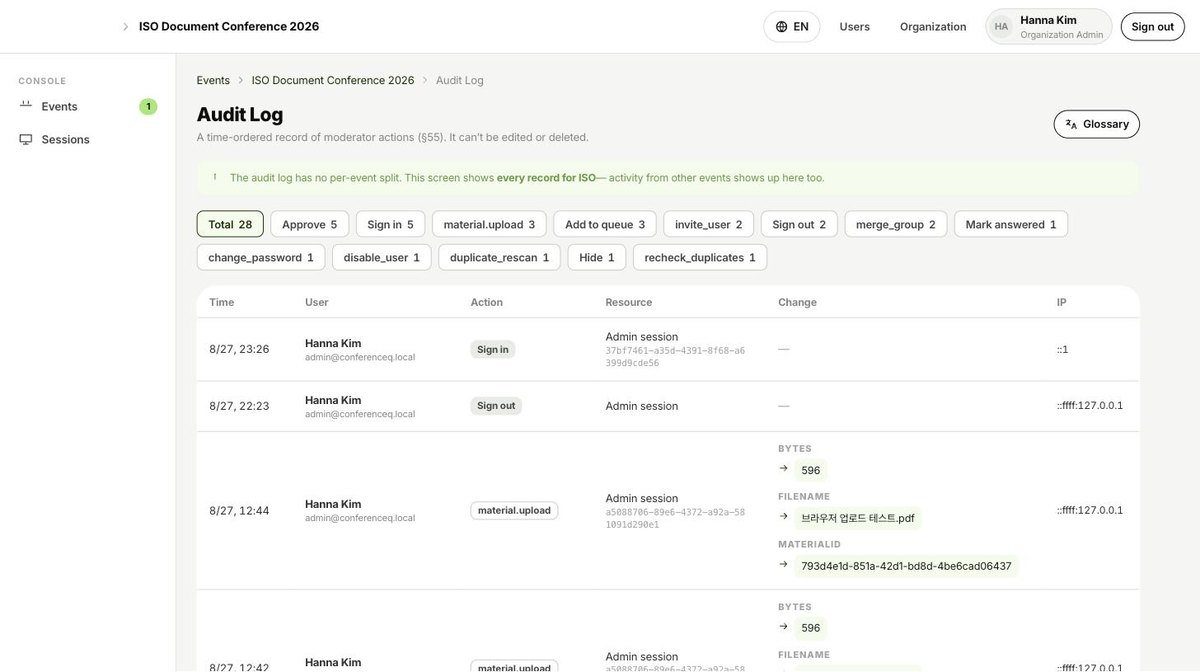
Audit Log
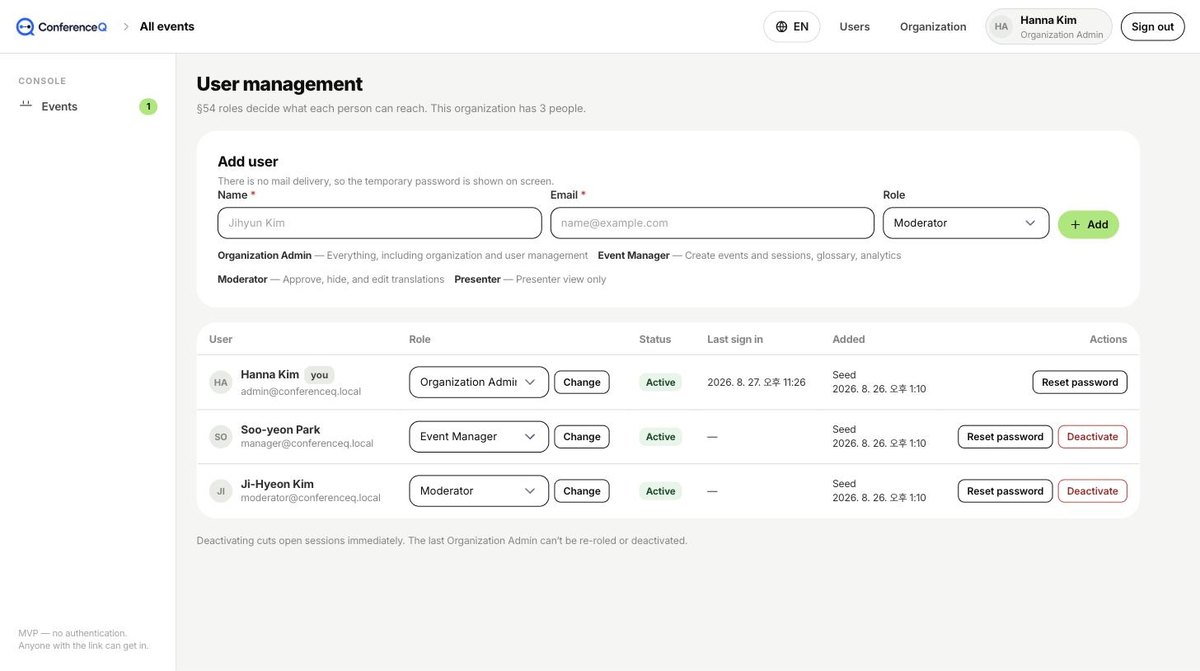
Users and the organization
Appendix
Question status reference
| Status | Meaning |
|---|---|
SUBMITTED | Received. Translation starts shortly. |
TRANSLATING | Being translated. |
PENDING_REVIEW | Waiting for a moderator. Not yet visible to the audience. |
APPROVED | Approved and visible in the audience list. |
QUEUED | Sitting in the presenter’s queue. |
ANSWERING | Being answered right now. |
ANSWERED | Answered. |
HIDDEN | Hidden by a moderator. Not deleted. |
DUPLICATE | Merged into another question. |
TRANSLATION_FAILED | Translation failed. The original text is preserved. |
Permission matrix
| Organization Admin | Event Manager | Moderator | Presenter | |
|---|---|---|---|---|
| Organization settings | ● | · | · | · |
| User management | ● | · | · | · |
| Create events and sessions | ● | ● | · | · |
| Manage the Glossary | ● | ● | · | · |
| Analytics and Audit Log | ● | ● | · | · |
| Approve and hide questions | ● | ● | ● | · |
| Edit translations | ● | ● | ● | · |
| Create and close polls | ● | ● | ● | · |
| Show a question on screen | ● | ● | ● | ● |
| Presenter View | ● | ● | ● | ● |
Troubleshooting
| Symptom | What to check |
|---|---|
| The audience says they can’t submit a question | Check that the session is LIVE. Submission is closed while SCHEDULED, PAUSED or ENDED. |
| Nothing is being translated | Saving a question is independent of translating it, so the question survives a translation failure. Failed ones collect under Translation Failed in the Moderation Queue, and the dashboard Alerts flags them. |
| Terminology keeps changing between translations | Register the term in the Glossary. Terms apply from the next translation onward, so add them before the event. |
| Scanning the QR lands somewhere unexpected | A QR encodes the domain it was generated on. Before printing, check the URL under the QR is your real service address. |
| The presentation materials are gone | Archiving a session deletes its materials too. That can’t be undone — keep your own copy before you archive. |
ConferenceQ · conferenceq.live · mudotmusic@gmail.com